Secure and Brand the Auth Flow in Production
To keep your users safe, Arcade.dev performs a user verification check when a is authorized for the first time. This check verifies that the who is authorizing the tool is the same user who started the authorization flow, which helps prevent phishing attacks.
There are two ways to secure your auth flows with Arcade.dev:
- Use the Arcade verifier for development (enabled by default)
- Implement a custom verifier for production
This setting is configured in the Auth > Settings section of the Arcade Dashboard.
Use the Arcade user verifier
If you’re building a proof-of-concept app or a solo project, use the Arcade user verifier. This option requires no custom development and is on by default when you create a new Arcade.dev .
This setting is configured in the Auth > Settings section of the Arcade Dashboard:
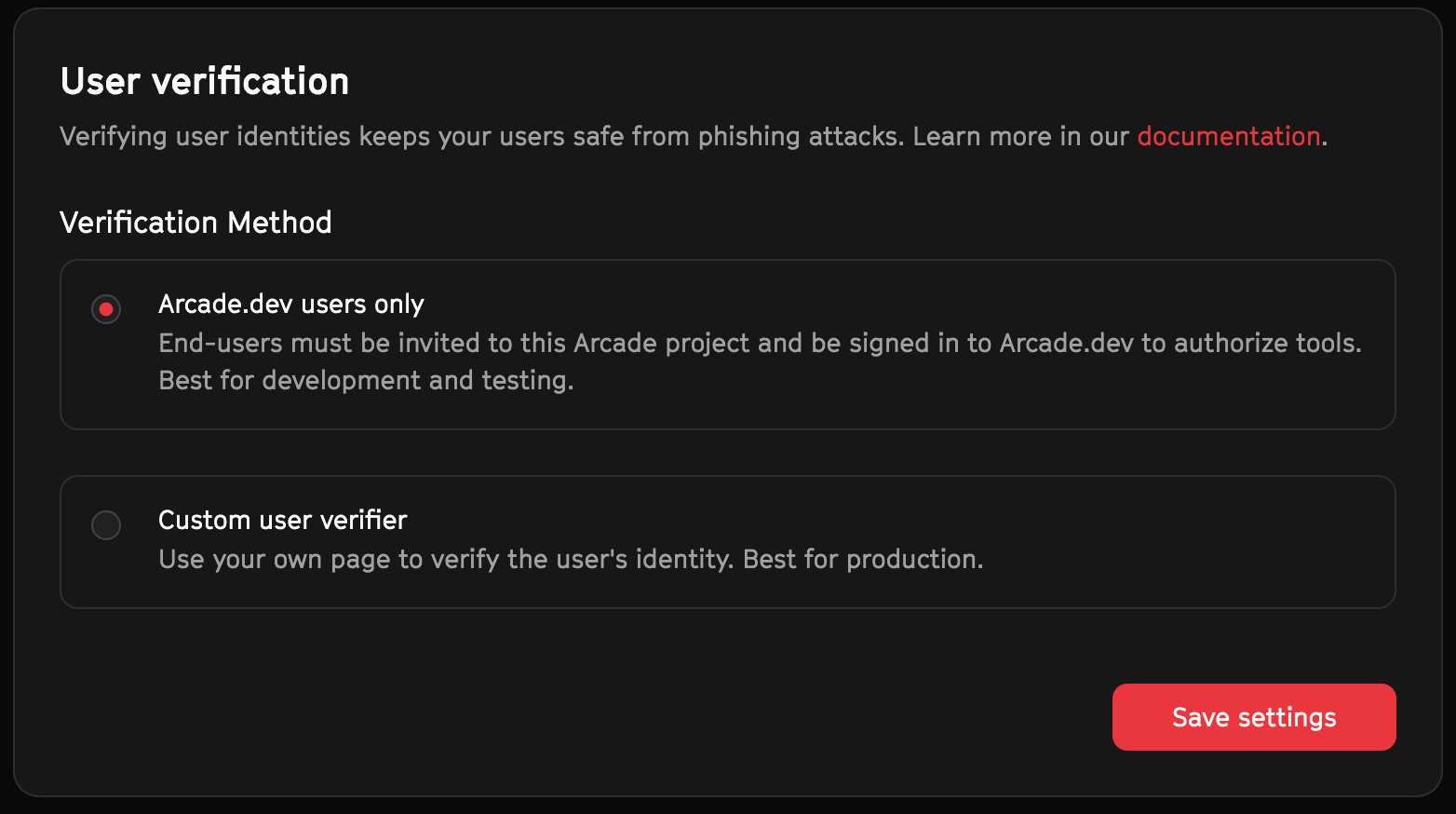
When you authorize a tool, you’ll be prompted to sign in to your Arcade.dev . If you are already signed in (to the Arcade Dashboard, for example), this verification will succeed silently.
The Arcade.dev user verifier helps keep your auth flows secure while you are building and testing your or app. When you’re ready to share your work with others, implement a custom user verifier so your don’t need to sign in to Arcade.dev.
Arcade’s default OAuth apps can only be used with the Arcade user verifier, which requires each end user to sign in to an Arcade that is a member of your . This ties end-user authorization to project membership, which is why the default OAuth apps are intended for development and single- use. For a multi- production app, add your own OAuth app credentials and pair them with a custom user verifier, so your end users are verified by your app rather than by project membership.
Build a custom user verifier
In a production application or , end-users are verified by your code, not Arcade.dev. This allows you to fully control the experience of the auth flow. To enable this, build a custom verifier route and add the URL to the Arcade Dashboard.
When your users authorize a , Arcade.dev will redirect the ’s browser to your verifier route with some information in the query string. Your custom verifier route must send a response back to Arcade.dev to confirm the user’s ID.
If you need help, join the Implementing a custom user verifier GitHub discussion and we’ll be happy to assist.
Build a new route
Create a public route in your app or API that can accept a browser redirect (HTTP 303) from Arcade.dev after a user has authorized a .
The route must gather the following information:
- The
flow_idfrom the current URL’s query string - The unique ID of the currently signed in, commonly an ID from your application’s database, an email address, or similar.
How the ’s unique ID is retrieved varies depending on how your app is built, but it is typically retrieved from a session cookie or other secure storage. It must match the user ID that your code specified at the start of the authorization flow.
Verify the user’s identity
Use the Arcade SDK (or our REST API) to verify the ’s identity.
Because this request uses your key, it must not be made from the client side (a browser or desktop app). This code must be run on a server.
JavaScript
import { Arcade } from "@arcadeai/arcadejs";

const client = new Arcade(); // Looks for process.env.ARCADE_API_KEY by default

// Within a server GET handler:
// Validate required parameters
if (!flow_id) {
  throw new Error("Missing required parameters: flow_id");
}

// Confirm the user's identity
try {
  const result = await client.auth.confirmUser({
    flow_id: flow_id as string,
    user_id: user_id_from_your_app_session, // Replace with the user's ID
  });
} catch (error) {
  console.error(
    "Error during verification",
    "status code:",
    error.status,
    "data:",
    error.data
  );
  throw error;
}Valid Response
If the ’s ID matches the ID specified at the start of the authorization flow, the response will contain some information about the auth flow. You can either:
- Redirect the ’s browser to Arcade’s
next_uri - Redirect to a different route in your application
- Look up the auth flow’s status in the and render a success page
JavaScript
// Wait for the auth flow to be completed by the user:
const authResponse = await client.auth.waitForCompletion(result.auth_id);

if (authResponse.status === "completed") {
  // Either redirect to a URL, or render your own success page:
  return new Response(null, {
    status: 303,
    headers: {
      Location: "https://your-app.com/auth/success",
    },
  });
} else {
  return "Something went wrong. Please try again.";
}Invalid Response
If the ’s ID does not match the ID specified at the start of the authorization flow, the response will contain an error.
JavaScript
console.error(
  "Error during verification",
  "status code:",
  error.status,
  "data:",
  error.data
);
throw error;Add your custom verifier route to Arcade
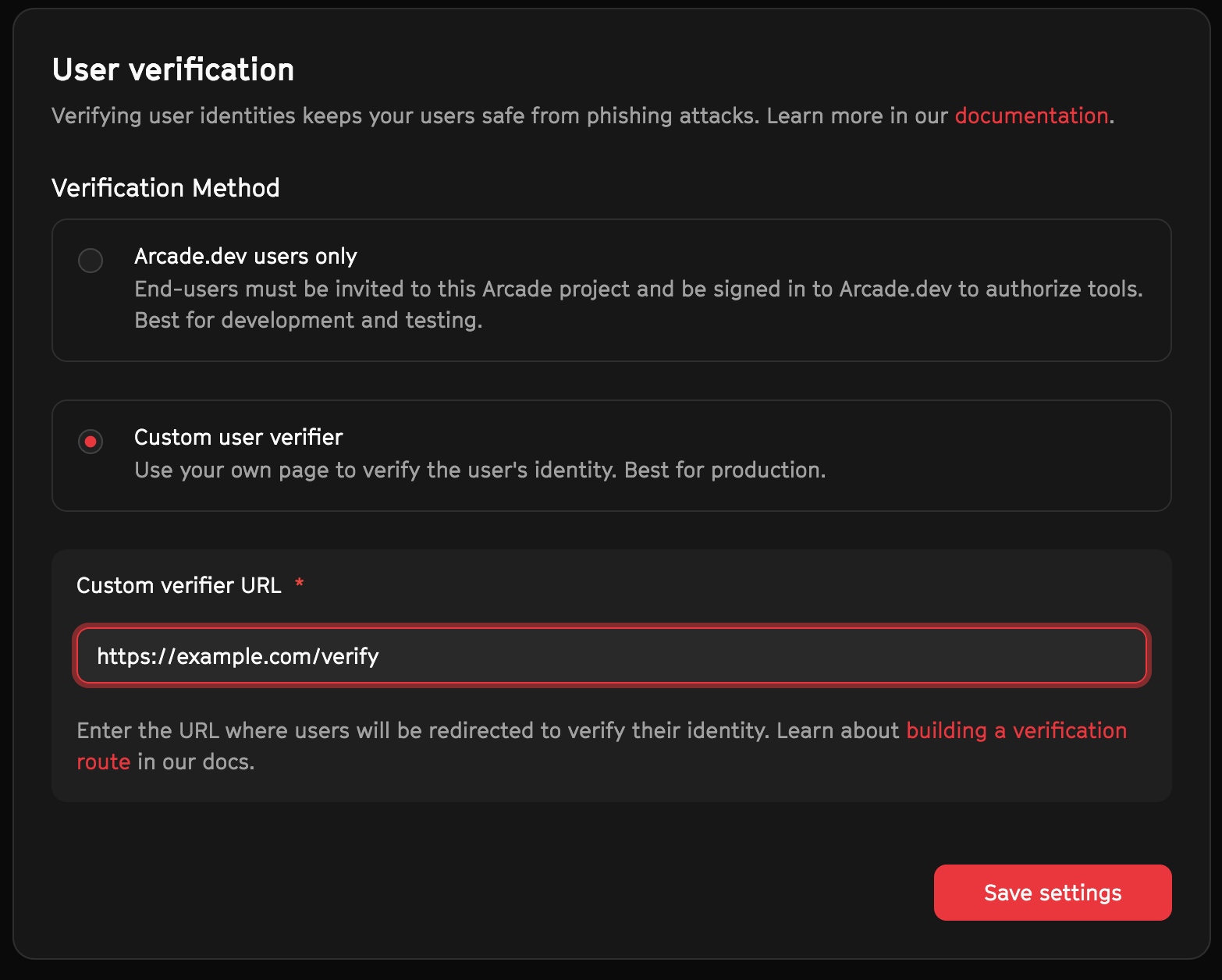
In the Auth > Settings section of the Arcade Dashboard, pick the Custom verifier option and add the URL of your verifier route.
Arcade’s default OAuth apps only support the Arcade user verifier. Authorization flows that use a default OAuth app always fall back to the Arcade user verifier, even if you have a custom verifier route configured. Because the Arcade user verifier requires the end user to be a signed-in member of your , authorizations through a default OAuth app are always gated by project membership.